Projection Settings
These settings all relate to how the camera looks out into the scene.
Projection
By default, cameras render a perspective projection. There are two other options: orthographic (no perspective) and panorama.
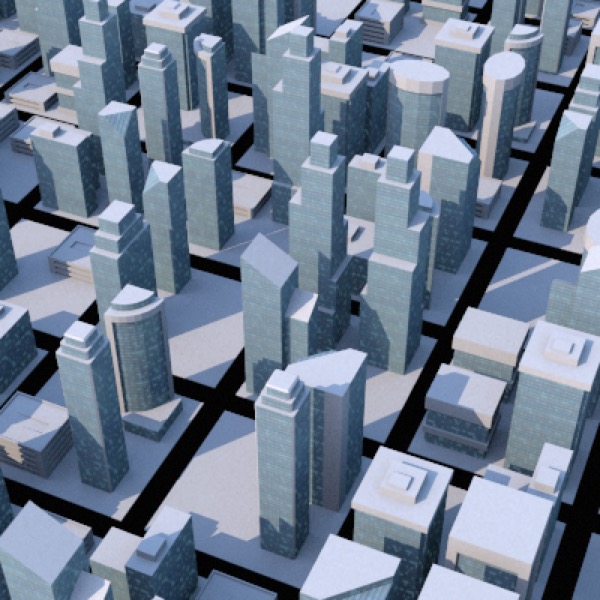
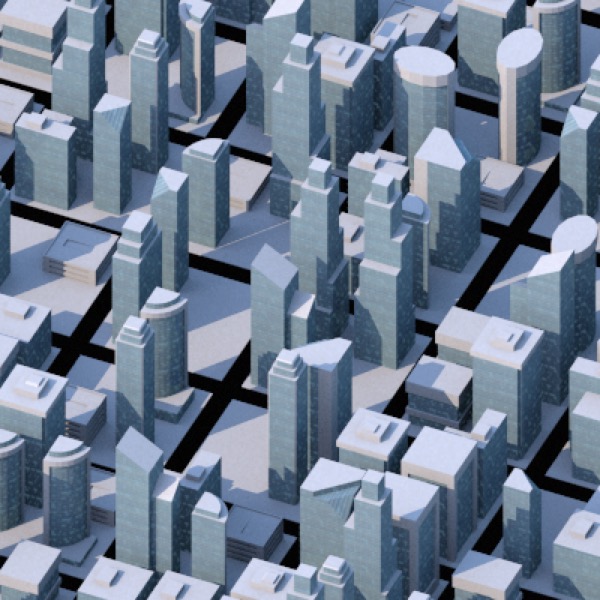
Top: cityscape rendered through a camera with perspective. Bottom: cityscape rendered through an orthographic camera.
Orthographic rendering is useful for engineering and architecture applications, and for rendering components for isometric “faux 3D” games.
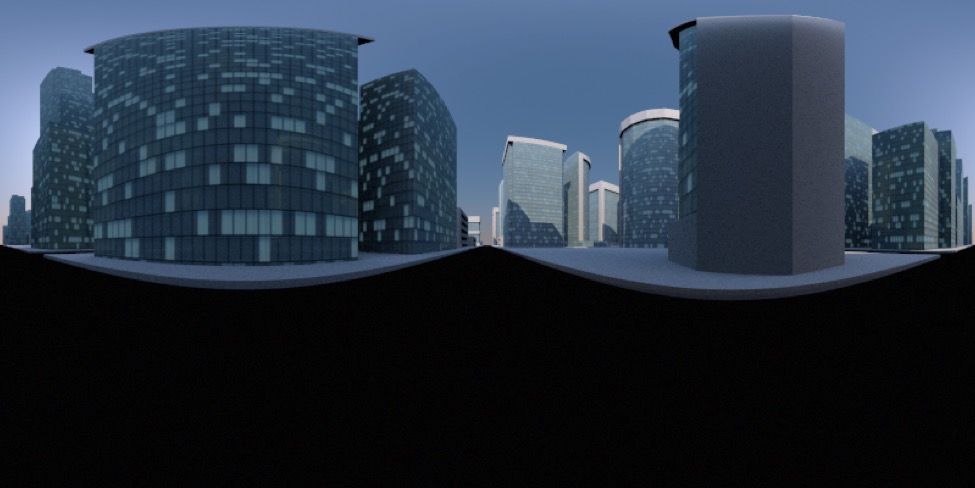
Panorama rendered with a level camera — the ground plane is horizontal and runs through the center of the image.
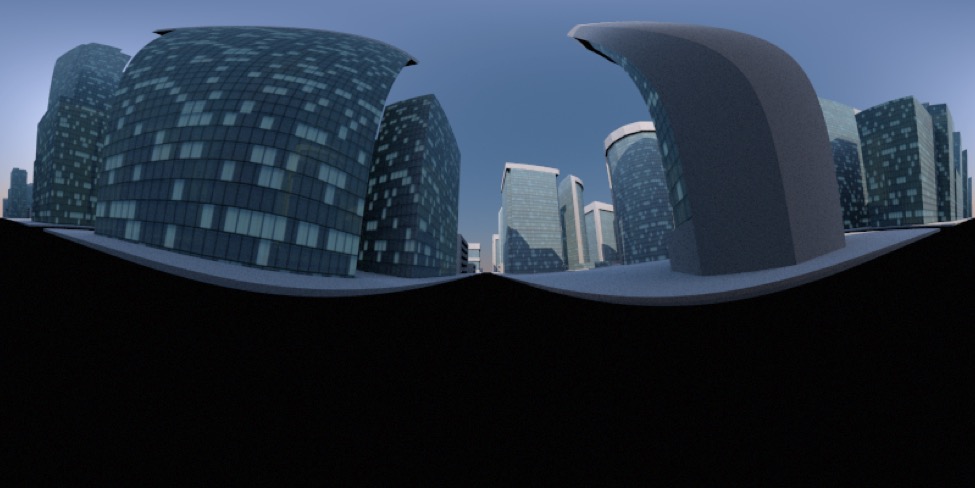
This panorama was set up exactly as the previous one except that the camera was pitched up 10°.
Panorama rendering produces 360° panoramas suitable for use as HDRI reflection maps, or simply to produce really cool looking 360° views. The panorama that will be rendered from a camera is determined by its position and orientation — it will be the panorama you would get by pivoting on the camera’s y-axis.
Field of View
For perspective cameras, field of view determines the kind of “lens” your camera uses. Normally when you “zoom in” or “zoom out” using the camera controls you’re moving the active camera forward and backward (i.e. along its own z-axis). If you want to zoom in and out the way a camera lens does, you need to change the field of view — a wide field of view (e.g. 100°) would be equivalent to a very wide angle lens (approximately a 15mm lens on 35mm camera or 24x36mm “full frame” DSLR) while 5° is roughly the equivalent of a 400mm lens.
The following values are from Wikipedia’s article on Angle of View. I’ve used their horizontal field of view values, because Cheetah 3D’s field of view is the angle across a square, and the final image is cropped from that square.

Zoom
For orthographic cameras, zoom determines how large the scene is rendered in the camera view (since field of view is meaningless in an orthographic view).
Clip Near, Clip Far
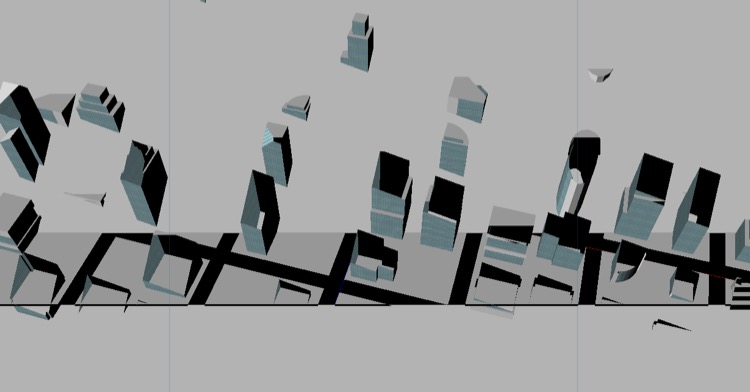
Here I’ve set the Clip Near and Clip Far values of the active camera to be close to the distance the middle of the scene is from the camera, leading to a very strange result as these values “slice through” objects in the scene.
These values determine the closest and furthest objects that will be visible in the camera in the edit view (it has no effect on rendering). The main use of these values is to improve screen refresh in very large and complex scenes by hiding stuff that’s “far away”.
Make Active Camera
This button explicitly makes the camera active (unless this camera or the active camera are locked). There’s a quicker way to make a camera active, which is to double-click it in the Object Browser.
Render Settings
AI draft: generated from the Cheetah 3D 8.1.1 manual; not yet reviewed by the author.
In Cheetah 3D 8, the settings that control render quality belong to the renderer, not the camera. Choose a renderer (Cheetah or Falcon) with Render > Renderer, then click the renderer icon in the toolbar (the cheetah head) to show its settings in the Properties panel. These settings are stored with the scene and apply to whichever camera is active.
Both renderers’ General settings include Resolution (the size of the rendered image or movie), Exposure, Gamma, and Dither. Falcon adds Filmic, a filmic tone mapper (use it with a Gamma of 2.2).
The camera itself keeps Camera light, the Background, and the depth of field and shutter settings.
End of AI draft.
Antialiasing, Min. samples, Max. samples, Tolerance (Cheetah renderer)
AI draft: generated from the Cheetah 3D 8.1.1 manual; not yet reviewed by the author.
These settings are in the General section of the Cheetah renderer. Falcon has none of them: it simply traces a fixed number of paths per pixel, set by Samples (0 means it keeps refining until you stop the render yourself).
End of AI draft.
Anti-aliasing is a graphics trick whereby images are made to look smoother by interpolating the colors of pixels that lie on edge detail in an image. Rendering is a tradeoff between speed and quality — and one of the things all renderers do is try to avoid doing as much work as possible.
Min. samples determines the minimum level of detail — i.e. number of rays — Cheetah 3D will render (1x1 means it will fire off one ray for each pixel, 4x4 means it will divide a pixel into a 4x4 grid and fire one ray off through each of them — you’ll see that Cheetah 3D is willing to go down as far as only firing one ray for every 4x4 set of pixels).
Note: needs checking in Cheetah 3D 8.1.1: can Min. samples still go below 1x1 (one ray for every 4x4 set of pixels)? The manual says “1x1 results in no anti-aliasing” and doesn’t mention lower settings.
Max. samples determines the maximum level of detail —i.e. number of rays — Cheetah 3D will render for a given pixel.
Antialiasing and Tolerance dictate Cheetah 3D’s criteria for deciding whether to go beyond the minimum and fire off more rays to render a given pixel. Edge means that Cheetah 3D will fire off more rays if the pixel (or grid of pixels, or subpixel) it has just rendered has an edge running through it. Color means that it will fire off more rays if the pixel just rendered is different in color from a neighboring pixel relative to a specified Tolerance.
In theory, using the Color antialiasing mode will be slower and produce better output than using the Edge method because it will pick up fine detail in materials which the edge method will ignore. In practice, both methods seem to use tolerance as a criterion to render more detail, and there seems to be little difference in the results.
AI draft: generated from the Cheetah 3D 8.1.1 manual; not yet reviewed by the author.
Shadows (in the Cheetah renderer’s Other section) allows you to toggle shadows on or off for all light sources in the scene.
End of AI draft.
Camera Light acts like a “flash”. By default it’s set to auto, which means if there’s no light in a scene it will be active (it acts like a directional light pointing out of the camera) otherwise it automatically turns off. You almost never want the camera light, but its auto setting means you hardly ever notice it.
You may have issues with the camera light when rendering scenes entirely lit by emissive objects, in which case switch it off.
Output
AI draft: generated from the Cheetah 3D 8.1.1 manual; not yet reviewed by the author.
The dimensions of rendered images are now set by the renderer’s Resolution setting (see above), not by the camera.
End of AI draft.
Background
Background settings determine the background color or image. By default, Cheetah 3D renders a black background. Probably the best background option is 100% transparent since this allows you to composite your rendered images if so desired.
Renderer Settings
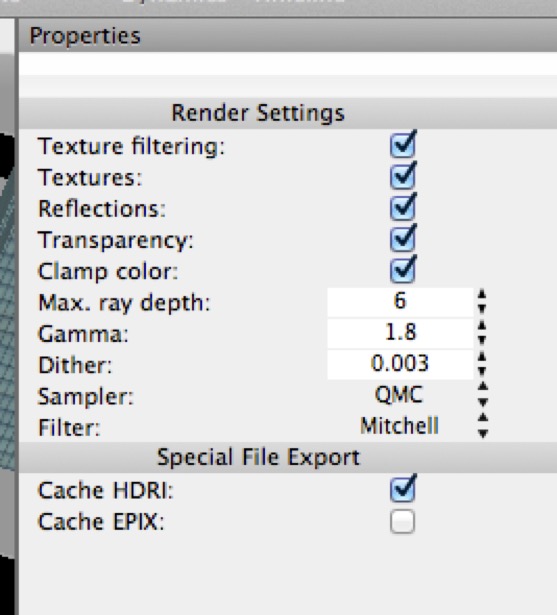
Note: this screenshot shows an older version of Cheetah 3D.
AI draft: generated from the Cheetah 3D 8.1.1 manual; not yet reviewed by the author.
There is no longer a separate Render Preferences panel: what used to be there is now part of each renderer’s settings (Render > Renderer, or the renderer icon in the toolbar). They are scene settings, not Cheetah 3D preferences.
In the Cheetah renderer’s Other section, Max. ray depth determines how many transmissions and reflections a ray will be allowed to calculate before giving up, and Textures, Reflections, Transparency, and Shadows switch those features off for the whole scene. Falcon replaces Max. ray depth with its Ray depth (bounces) settings: Total bounces, Diffuse bounces, Glossy bounces, Specular bounces, and Transparency depth.
To keep a high dynamic range version of a render (what Cache HDRI used to do), turn on Save G-Buffer in either renderer. The G-Buffer records HDR color (16- or 32-bit per component) and, optionally, Z-Buffer depth, Layer ID, Object ID, and Material ID to an EXR file, and the Render Manager will then let you save EXR files.
End of AI draft.
Increase Max. ray depth (or Falcon’s bounces) for scenes with many transparent and reflective objects, or if you see mysterious black patches appear when rendering transparent or reflective objects.