Cheetah 3D Under the Hood
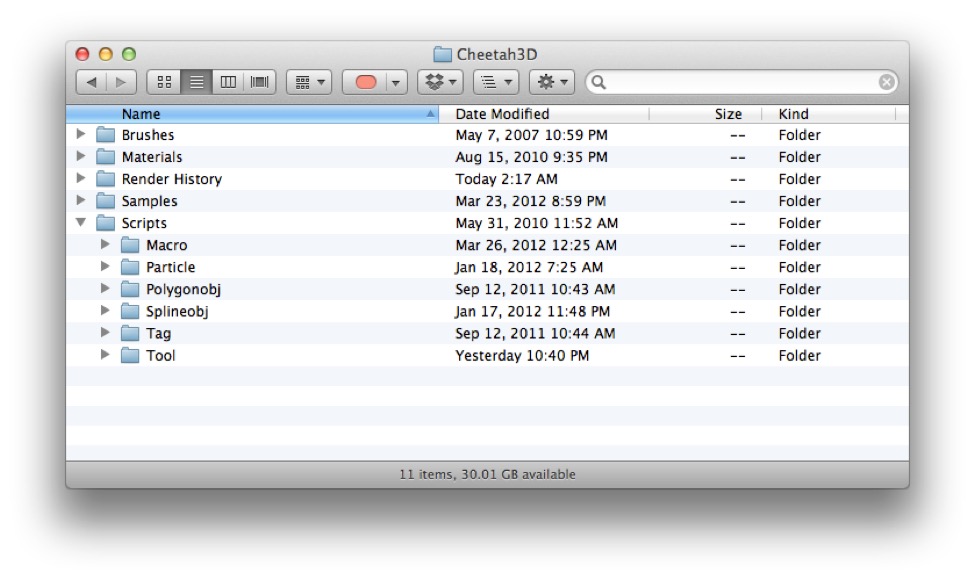
Cheetah 3D’s Application Support Folder
You can open Cheetah 3D’s Application Support folder by selecting Go > Go to folder… in Finder and entering this path: ~/Library/Application Support/Cheetah3D/
Inside this folder you will find six folders:
Brushes
Images you put in this folder will be available for use as brushes in Cheetah 3D’s texture painting tool.
AI draft: generated from the Cheetah 3D 8.1.1 app bundle; not yet reviewed by the author.
Environment
This folder holds HDR environment images (Cheetah 3D 8.1.1 installs EntranceHall.hdr and Oldtown.hdr here) for image-based lighting.
End of AI draft.
Materials
This is where the materials available from the Material menu are found. If you want to add more materials (or remove materials you don’t like) here’s where to look.
Render History
This is where all the renders you’ve ever done with Cheetah 3D (using this particular user account) and not deleted can be found. Each render job has its own folder. Each folder will almost always include an image (in PNG format), a thumbnail (in JPEG format), some metadata (in an info.plist XML file). Animations will include multiple images and a movie wrapper named movie.mov. If you rendered with preferences set to cache HDR or EPIX then those will be here too.
As I write this, I have over 4000 folders in my Render History.
Note: needs checking in Cheetah 3D 8.1.1: the render folder checked held image.png, thumbnail.png (PNG, not JPEG) and info.plist; confirm the thumbnail format and whether the “cache HDR or EPIX” preference still exists.
AI draft: generated from the Cheetah 3D 8.1.1 app bundle; not yet reviewed by the author.
Samples
This folder holds the sample scenes that come with Cheetah 3D, sorted into Animation, Dynamics, Metaballs, Modeling, and Particle subfolders.
End of AI draft.
Scripts
The Scripts folder has a number of subfolders for different kinds of scripts (the folder a script is in decides what kind of script it is):
Macro scripts are simple automations. They do something immediately and automatically with no further user input.
Particle scripts are scripted Particle Systems.
Polygonobj are scripted mesh primitives.
Splineobj are scripted spline primitives.
AI draft: generated from the Cheetah 3D scripting knowledge base and the scripts bundled with Cheetah 3D 8.1.1; not yet reviewed by the author.
Tag scripts are scripted tags. Since Cheetah 3D 7 they are expression tags: the script's performExpression function drives the tag's owner (e.g. making it move in a circle, as the bundled CircleExpression.js does), and the tag can also hold custom properties.
Tool scripts bring up a UI panel, in the Tool tab of the properties panel, which can be used to configure the tool or perform tasks.
End of AI draft.
.jas Files
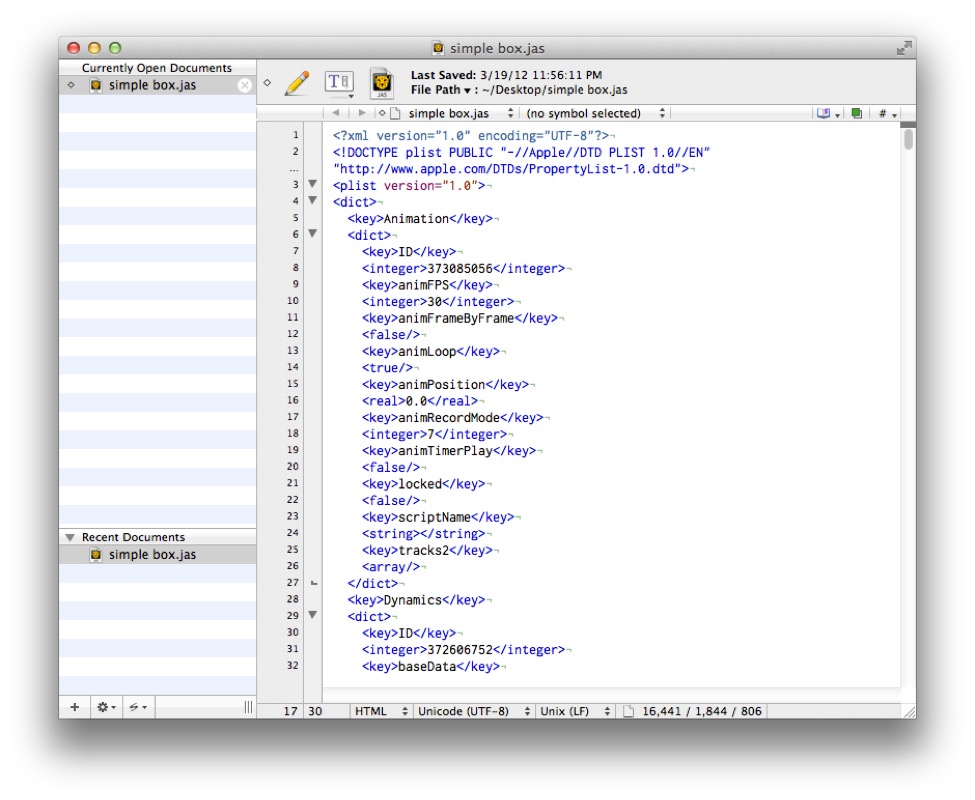
A simple .jas file open in BBEdit 10.
If you open up a .jas file with a text editor (such as TextEdit — if you want a good, free text editor I highly recommend TextWrangler from barebones.com) you’ll see that it’s an XML file. It follows that you can perform major changes to .jas files — if you’re careful — using any of the huge variety of tools for manipulating XML. E.g. using XSL it should be possible to write simple transformations that document the contents of .jas files, convert them to other file formats, or perform systematic changes.