Rendering
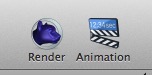
Note: this screenshot shows an older version of Cheetah 3D.
AI draft: generated from the Cheetah 3D 8.1.1 manual; not yet reviewed by the author.
There are three toolbar items for rendering in Cheetah 3D. The Render item renders the current frame, the Animation item renders the current animation “workspace” (i.e. a subset of the current take defined by the gray bar below the timeline in the animation control panel, shown below), and the third starts a baking job (see Baking Materials).
End of AI draft.

This grey bar allows you to determine which part of the current animation “take” you’re working on, and also what will be rendered when you click the Animation toolbar item.
AI draft: generated from the Cheetah 3D 8.1.1 manual; not yet reviewed by the author.
Cheetah 3D has two renderers: Cheetah, a recursive ray tracer, and Falcon, an unbiased path tracer (introduced in Cheetah 3D 7). You switch between them with Render > Renderer, or by clicking and holding the renderer icon in the toolbar. There are no other options (no “scanline” or “opengl” rendering options, for example).
End of AI draft.
If you want to preview an animation in real time you can simply press the Play button in the animation control panel. For complex scenes, "real time" playback may become slow and jerky.
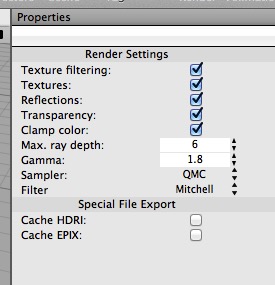
Note: this screenshot shows an older version of Cheetah 3D.
AI draft: generated from the Cheetah 3D 8.1.1 manual; not yet reviewed by the author.
The renderer’s global settings (stored per document) appear in the Properties panel when you click the renderer icon in the toolbar. Most of these settings are things you’ll never want to change, but in the Cheetah renderer Max. ray depth (under Other) determines how many levels of recursion the renderer will permit when rendering reflections and transparency.
In complex scenes with lots of transparent and reflective objects you may need to increase this (if you start seeing black where you expect reflections or transparency, it may be that your Max. Ray Depth is too low). Falcon has Ray depth (bounces) settings instead — Total, Diffuse, Glossy, and Specular bounces, plus Transparency depth — which play the same role.
End of AI draft.
Note: needs checking in Cheetah 3D 8.1.1: how the render settings are opened in 8.1.1 (the manual only says the toolbar icon is clicked and held to change the renderer).