Scripts
Some Very Useful Scripts
For the last couple of years I’ve tried to maintain a “master list” of useful scripts for Cheetah 3D (I’ve even contributed a couple myself). This list is posted on the forums here: https://www.cheetah3d.com/forum/index.php?threads/5752/ but I’ve included the current list as of writing below.
Note: needs checking in Cheetah 3D 8.1.1: none of these scripts has a forum report from 8.x, and most date from Cheetah 3D 5–6. The Cheetah 3D scripting knowledge base catalog lists what forum users reported for each one.
Basic Interface Enhancements
Expand Selection conditionally expand a selection
Note: requires updating for Cheetah 3D 8.1.1: Cheetah 3D now has a built-in Selection > Expand Selection command (not conditional, unlike this script).
Toggle Visibility / Make Solo make everything except the selection disappear or go wireframe
OBJ Importer improved OBJ import
Note: requires updating for Cheetah 3D 8.1.1: superseded; Cheetah 3D has imported OBJ files natively since version 6 (KB catalog, thread 4085).
Object Chunker break large meshes into smaller meshes to meet polygon budget (e.g. for Unity which won’t accept meshes with more than 65535 triangles).
Note: needs checking in Cheetah 3D 8.1.1: the Unity limit was 65535 vertices (16-bit indices), not triangles, and current Unity supports 32-bit indices.
Modeling
Center Bounds set center of object to the center of its bounding box
Note: requires updating for Cheetah 3D 8.1.1: largely superseded by Tools > Coord System, whose “center pivot point” button moves the pivot to the geometric center (manual: Coord System Tool).
Edge N Splitter a more versatile ring cutting tool
Edge Utilities macros for working with creases and seams
Center of Gravity set center of object to the center of "gravity" of a selected set of faces.
Flatten Polygon make selected polygons properly coplanar
Note: needs checking in Cheetah 3D 8.1.1: the original Flatten.js link is dead and was reported broken in 5.8; the thread has a later flattened4U.js version (KB catalog, thread 1405).
Hair algorithmic generation of hair geometry with UVs
Note: needs checking in Cheetah 3D 8.1.1: Hair.js gave errors in 6.2.1 while cHair.js worked (KB catalog, thread 1294).
-
Note: requires updating for Cheetah 3D 8.1.1: probably superseded by the built-in Loft creator object (manual: Loft Object).
Mandelbulb julia set modeler
Note: needs checking in Cheetah 3D 8.1.1: its helper binary was built for OS X 10.6 and one user never got it working (KB catalog, thread 5865).
Mirror Copy (also useful for animation) mirror geometry and poses
Note: needs checking in Cheetah 3D 8.1.1: reports are mixed; a 2020 report says it does nothing in 7.4.2 (KB catalog, thread 1448).
Pivot Setter (and a derived script for setting the pivot to a selected point)
-
Note: requires updating for Cheetah 3D 8.1.1: superseded by the built-in Tools > Polygon > Simplify tool (manual: Simplify Tool).
Surface Utilities powerful tools for changing smoothing settings and fixing normals.
Extruded Text Maker — has more options than standard text spline
Note: needs checking in Cheetah 3D 8.1.1: users reported crashes in 5.7 and the last fix was never confirmed (KB catalog, thread 6801).
-
Note: needs checking in Cheetah 3D 8.1.1: use the 2010 version from post #11; the original file throws an error in later versions (KB catalog, thread 1298).
Animation
-
Note: requires updating for Cheetah 3D 8.1.1: superseded; Cheetah 3D has supported movie textures natively since version 7 (KB catalog, thread 1210).
Pose Utilities mirror and flip poses quickly and efficiently
Texturing and UV-Mapping
-
Note: needs checking in Cheetah 3D 8.1.1: the original post (p=2689) is not in the KB archive; this link goes to Targos’s 2010 repost of Neil Carter’s script.
Rendering
LuxCheetah exports C3D scenes to the free physically-based renderer LuxRender
Note: requires updating for Cheetah 3D 8.1.1: last confirmed for 5.5, LuxRender has been succeeded by LuxCoreRender, and Cheetah 3D now includes its own unbiased path tracer, Falcon (manual: Falcon).
Particles
Iterative Relative Particles for Groboto-style procedural objects
Particle City custom particle system for procedurally generating "cities"
Using Scripts
The first thing you need to know about scripts is where to “install” them. This is especially tricky as of Lion because Apple has hidden user Library folders.
The simplest option is to use Go > Go To Folder in Finder to go to this folder:
~/Library/Application Support/Cheetah3D/
Which subfolder does a script go in?
For some reason Cheetah 3D requires scripts to be put in specific sub-folders despite the fact that (a) human beings cannot easily tell what kind of script a given script file is and (b) Cheetah 3D probably can. Go figure. If it's not obvious from the script's documentation or internal comments what kind of script it is, here's how you can probably tell by looking through it:
AI draft: generated from the Cheetah 3D 8.1.1 manual and the Cheetah 3D scripting knowledge base; not yet reviewed by the author.
The subfolders are Macro, Tool, Tag, Polygonobj, Splineobj, and Particle, and the folder decides the script type: a script in the wrong folder fails silently, throws misleading errors, or crashes Cheetah 3D.
If the script contains function main, it's a Macro script.
If the script contains function buildObject and calls addParticle, it's a Particle script.
If the script contains function buildObject and calls the spline core's move(), line(), or curve(), it's a Splineobj script.
If the script contains function buildObject, but no spline calls and no addParticle, it's a Polygonobj script.
If the script contains function performExpression (usually alongside buildUI), it's a Tag script. Since Cheetah 3D 7, Tag scripts are expression tags: Cheetah 3D calls performExpression to drive the tag's owner as the scene updates (see the bundled CircleExpression.js). A script with only buildUI and declarations is probably a Tag script too.
Finally, if the script contains function buildUI, at least one other function (called by a button), but no buildObject or performExpression function, it's a Tool script.
End of AI draft.
This is not completely foolproof. It's possible to create a Particle script that never calls addParticle, for example, but it would be kind of weird. In most cases, what a script is supposed to do should be documented.
When must you relaunch Cheetah 3D?
AI draft: generated from the Cheetah 3D 8.1.1 app and the Cheetah 3D scripting knowledge base; not yet reviewed by the author.
If you’re working on a script you do not need to relaunch Cheetah 3D for it to see changes to the script (but you may need to select the script anew from the Script menu). To make Cheetah 3D pick up a newly added script, choose Update Menu at the bottom of the Tools > Script menu, or quit and relaunch Cheetah 3D.
End of AI draft.
Note: needs checking in Cheetah 3D 8.1.1: the manual (Executing a Script) still says to restart, but the app has an “Update Menu” item; confirm it finds new scripts.
Be careful when coding scripts. It is quite possible for a script to seize up Cheetah 3D and require a force quit. (Command-option escape to force quit, in case you didn’t know. You can also click and hold on an application’s icon in the dock.)
Assigning Hotkeys to Scripts
Once you’ve loaded a script, you can assign a hotkey to it (just as you would anything else). This is extremely useful for some of the more frequently needed scripts. E.g. when doing character animation, you might want to hotkey Pose Utilities.
Writing Scripts
To create a new script simply fire up your favorite text editor and create a new JavaScript (.js) document in the appropriate folder.
The best way to do it is probably to open up your Cheetah 3D folder inside Application Support — ~/Library/Application Support/Cheetah3D/ — and duplicate a script of the type you want to write, name it what you want, and then launch/relaunch Cheetah 3D. (TextEdit in plain text mode works fine, but it’s very basic — if you don’t have a serious programmer’s text editor, I recommend TextWrangler from barebones.com — it’s free and very powerful.)
To write Cheetah 3D scripts requires that you know some JavaScript. Teaching JavaScript is beyond the scope of this book, but there are many good resources for learning JavaScript (many would recommend Douglas Crockford’s JavaScript: The Good Parts and his videos at http://yuiblog.com/crockford). If you’ve done any programming you can probably follow along without knowing much about JavaScript specifically.
AI draft: generated from the Cheetah 3D scripting knowledge base README; not yet reviewed by the author.
Getting an AI Assistant to Write Scripts for You
These days you don't have to be a programmer to get a useful script. AI chat assistants (ChatGPT, Claude, Gemini, and so on) are good at JavaScript but know very little about Cheetah 3D, so on their own they write scripts that look right but don't work. The Cheetah 3D scripting knowledge base fixes this: it collects the Cheetah 3D 8.1.1 scripting API, the example scripts that ship with the app, and about twenty years of lessons from the forum into one file you hand to the AI.
Start a new chat and begin your message with:
Read https://raw.githubusercontent.com/tonioloewald/c3d-scripting-kb/main/dist/c3d-context-short.md and follow it.
Then, in the same message, describe what you want in Cheetah 3D terms: what it acts on (the selection, the whole scene, or a new object), what it should do, which settings you want to control, and your Cheetah 3D version. The AI will tell you the script type and which folder to put it in. Save the script as a plain-text .js file, install it, and test it on a copy of your scene. If something goes wrong, paste the Console output back into the chat.
The same approach works for fixing an old forum script that has stopped working, or adding a feature to one. The knowledge base also has a catalog of the scripts posted on the forum, with what users reported about whether they work.
End of AI draft.
Basics
The simplest kind of script in Cheetah 3D is a Macro script. A Macro script looks like this:
function main(doc){
// do stuff here
}
A comment in JavaScript is anything between /* and */ or anything following // until the end of that line. So “// do stuff here” is a comment.
When someone selects a macro script from the Tools > Script > Macro Script menu Cheetah 3D loads the script and calls its main function, passing it the variable doc, which contains a representation of your Cheetah 3D document.
If we look through the online help for documentation on the Document object (which is what doc is going to be) we can see it has some useful looking properties and methods. A nice simple method is render(). Let’s try that.
function main(doc){
doc.render();
}
If you try running this script it will do exactly what you expect. Well, kind of. Unlike clicking the Render icon in the toolbar you get no visual feedback until the render is complete.
Still, it’s not like this is a terribly useful script. Let’s try something a little more advanced.
function main(doc){
doc.addObject( BOX );
}
This, again, does what you’d expect. The documentation also stipulates that addObject returns an object — the thing you added. Let’s do something with it.
function main(doc){
var box = doc.addObject( BOX );
box.setParameter( "position", new Vec3D( 0, 0.5, 0 ) );
}
This macro creates a new box and then moves it up 0.5 units. (Ever frustrated by how the default box is centered on the origin rather than sitting neatly on the XZ plane? This script is your answer!)
Debugging Scripts — The Console
If you right-click on the header of any panel in a Cheetah 3D window you’ll discover that one of the options is for a console panel. I recommend adding a console panel somewhere to one of your layouts if you want to do any scripting.
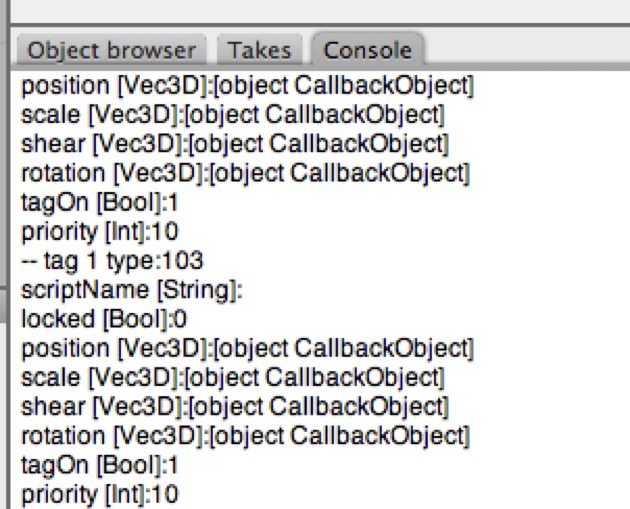
My default layout has a console tab tucked in with the object browser — ready whenever I need it.
If you want your script to say something to you (“Hey, I got this far without crashing”) then Cheetah 3D provides a print() function.
function main(doc){
print( "hello world");
}
Hmm, maybe I should have started with this!
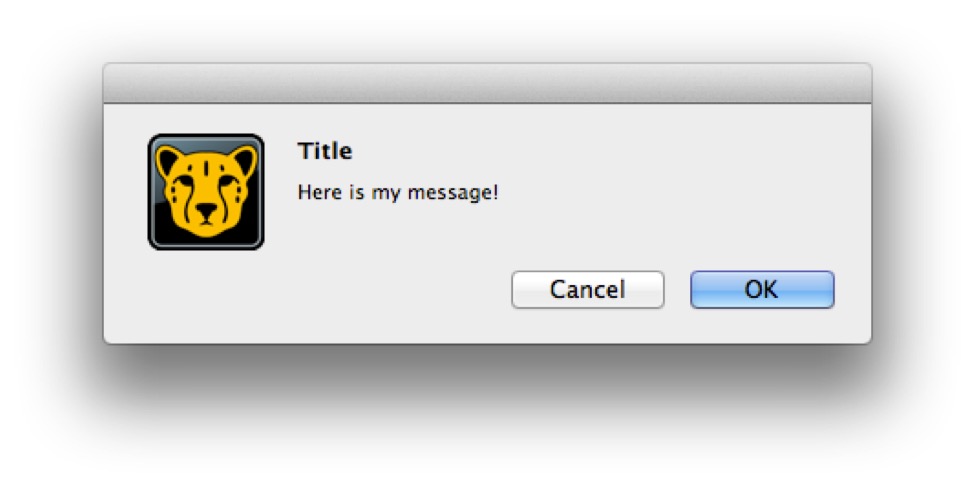
You can also generate alerts using the OS.messageBox() function.
function main(doc){
OS.messageBox("Title","Here is my message!");
}
Feeling Your Way Around
Cheetah 3D’s documentation is sometimes lacking, especially with respect to scripting, but it does offer some introspection tools to allow you to figure things out for yourself. One of the sample Macro scripts — Parameter Info.js — gives you a rough idea of how to do this, and forum scripting expert tg_jp has improved on it with this more general version:
function main(doc) {
var obj = doc.selectedObject();
print('---- Object Info ---');
if ( obj ) {
print('-- object type:'+obj.type());
var info = obj.parameterInfo();
for(var j=0;j<info.length;j++) {
print(info[j][0] +" [" + info[j][1] + "]:"+obj.getParameter(info[j][0]));
}
var tcount = obj.tagCount();
for (var i = 0;i < tcount;++i) {
var tag = obj.tagAtIndex(i);
info = tag.parameterInfo();
print('-- tag '+i+' type:'+tag.type());
for(var j=0;j<info.length;j++){
print(info[j][0] + " [" + info[j][1] + "]:"+tag.getParameter(info[j][0]));
}
if (tag.type() == 102) { // material tag.
var material = doc.materialAtIndex(tag.linkedToMaterial());
print('-- linked Material --');
info = material.parameterInfo();
for(var j=0;j<info.length;j++){
print(info[j][0] + " [" + info[j][1] + "]:"+material.getParameter(info[j][0]));
}
}
}
}
}
This script, when saved as a Macro Script, will document all the properties of any selected object.
If you wrap the core functionality of this script in a utility function, I’ll call it describe(), then you get something like this:
function describe( obj ){
if ( obj ) {
print('-- object type:'+obj.type());
var info = obj.parameterInfo();
for(var j=0;j<info.length;j++) {
print(info[j][0] +" [" + info[j][1] + "]:"+obj.getParameter(info[j][0]));
}
var tcount = obj.tagCount();
for (var i = 0;i < tcount;++i) {
var tag = obj.tagAtIndex(i);
info = tag.parameterInfo();
print('-- tag '+i+' type:'+tag.type());
for(var j=0;j<info.length;j++){
print(info[j][0] + " [" + info[j][1] + "]:"+tag.getParameter(info[j][0]));
}
if (tag.type() == 102) { // material tag.
var material = doc.materialAtIndex(tag.linkedToMaterial());
print('-- linked Material --');
info = material.parameterInfo();
for(var j=0;j<info.length;j++){
print(info[j][0] + " [" + info[j][1] + "]:"+material.getParameter(info[j][0]));
}
}
}
}
}
Now if I’m trying to figure out what properties a given object has, I can simply describe() it and its properties will be listed in the console.
This function has saved my bacon many times — e.g. when trying to script a Particle System the Random Seed property isn’t documented — how do you get at it? Using getParameter(“Random Seed”) doesn’t work. If you open the .jas file you’ll discover it’s called “particlesSeed” in the XML. But “particlesSeed” doesn’t work either (nor does “Particle Seed”). Finally, selecting a particle system and using this script reveals a property called “seed” of type “Int”. Eureka!
---- Object Info ---
-- object type:81
scriptName [String]:Scripts/Particle/Particle City.js
locked [Bool]:0
...
rotorder [Int]:6
name [String]:Procedural City
order [Int]:1
seed [Int]:12345
displayType [Int]:3
...
editorActive [Bool]:1
renderActive [Bool]:1
editorShading [Int]:0
Some Useful Techniques
Well, you’re pretty much on your own now. The best way to create new scripts is to look at the example scripts provided with Cheetah 3D, as well as those on the forums, and use them as a starting point. Before I send you off to swim with the sharks, here are a few useful techniques I’ve picked up.
Iterating Across the Scene Graph
This simple tool illustrates probably the single most useful pattern for writing macros and tool scripts.
First of all, it shows how to build a tool user interface.
The set_smooth function is called by the user interface button (the name of the function the button will call is passed as a parameter when creating the button).
The set_smooth function uses the target utility function to figure out if it’s going to act on the scene root or the selection (based on UI settings).
It then defines a simple function fn that does what it wants to do for a given object and calls the iterate_on_objects utility function to apply this simple function to the object returned by the target function and — if the user has opted for recursing children — everything below it in the scene graph (i.e. the Object Browser).
Note: requires updating for Cheetah 3D 8.1.1:
doc.selectedObject()returns the hidden scene root (not null) when nothing is selected, so “Selection Only” then acts on the whole scene; 8.1.1 also hasdoc.selectedObjects()for multiple selections (KB skill/SKILL.md rule 5; API: Document). Tool scripts should also callrecordParametersForUndo()before changing objects, or the changes bypass Undo (KB knowledge/gotchas.md).
// build the tool UI
function buildUI(tool){
tool.addParameterBool("Selection Only", true, false, true, false, false);
tool.addParameterBool("Recurse Children", true, false, true, false, false);
tool.addParameterSeparator("Smoothing");
tool.addParameterFloat("Angle",15.0,0.0,90.0,true,true);
tool.addParameterButton("Set Smooth Angle","OK","set_smooth");
}
function set_smooth(tool){
var angle = tool.getParameter("Angle");
var fn = function( obj ){
if( obj.type() == POLYGONOBJ ){
obj.setParameter("normalAngle", angle);
}
}
iterate_on_objects( tool, target(tool), fn );
tool.document().redrawAll();
}
function target(tool){
var doc = tool.document();
if( tool.getParameter("Selection Only") ){
return doc.selectedObject();
} else {
return doc.root();
}
}
// applies a function to an object and then, if user has selected recurse,
// recursively iterates across that object's children
function iterate_on_objects( tool, obj, fn ){
fn( obj );
if( tool.getParameter("Recurse Children") ){
for( var i=0; i<obj.childCount(); i++ ){
iterate_on_objects( tool, obj.childAtIndex(i), fn );
}
}
}
Iterating across the parts of an editable mesh
Using the same framework from the previous example, here’s a tool for flipping normals. You can flip every normal in your entire scene with a single button press using this handy script!
But the flip_normals function shows how to iterate across components of an editable mesh (a.k.a. POLYGONOBJ). Also note how it uses some tricks to force Cheetah 3D to recalculate normals and then forces the scene to be redrawn when it’s done.
// build the tool UI
function buildUI(tool){
tool.addParameterBool("Selection Only", true, false, true, false, false);
tool.addParameterBool("Recurse Children", true, false, true, false, false);
tool.addParameterSeparator("Normals");
tool.addParameterButton("Flip Normals","OK","flip_normals");
}
function flip_normals(tool){
var fn = function( obj ){
if( obj.type() == POLYGONOBJ ){
var c = obj.core();
for( var i=0; i<c.polygonCount(); i++ ){
c.flipWinding( i );
}
// Force recalculation of normals
obj.setParameter("normalAngle", obj.getParameter("normalAngle"));
}
}
iterate_on_objects( tool, target(tool), fn );
tool.document().redrawAll();
}
function target(tool){
var doc = tool.document();
if( tool.getParameter("Selection Only") ){
return doc.selectedObject();
} else {
return doc.root();
}
}
// applies a function to an object and then, if user has selected recurse,
// recursively iterates across that object's children
function iterate_on_objects( tool, obj, fn ){
fn( obj );
if( tool.getParameter("Recurse Children") ){
for( var i=0; i<obj.childCount(); i++ ){
iterate_on_objects( tool, obj.childAtIndex(i), fn );
}
}
}
Pseudo-Random Numbers
One of the useful features of Cheetah 3D’s Particle System objects is that they are driven by a pseudo-random number generator for which you explicitly provide a seed value (which defaults to 12345). This means that a particle system will deterministically produce results based on that seed value. The effects seem random, but they’re completely predictable and reproducible. This means that if you’ve tweaked your particle settings to produce a pleasing result it won’t suddenly do something different when you render it (or the next time you load the file).
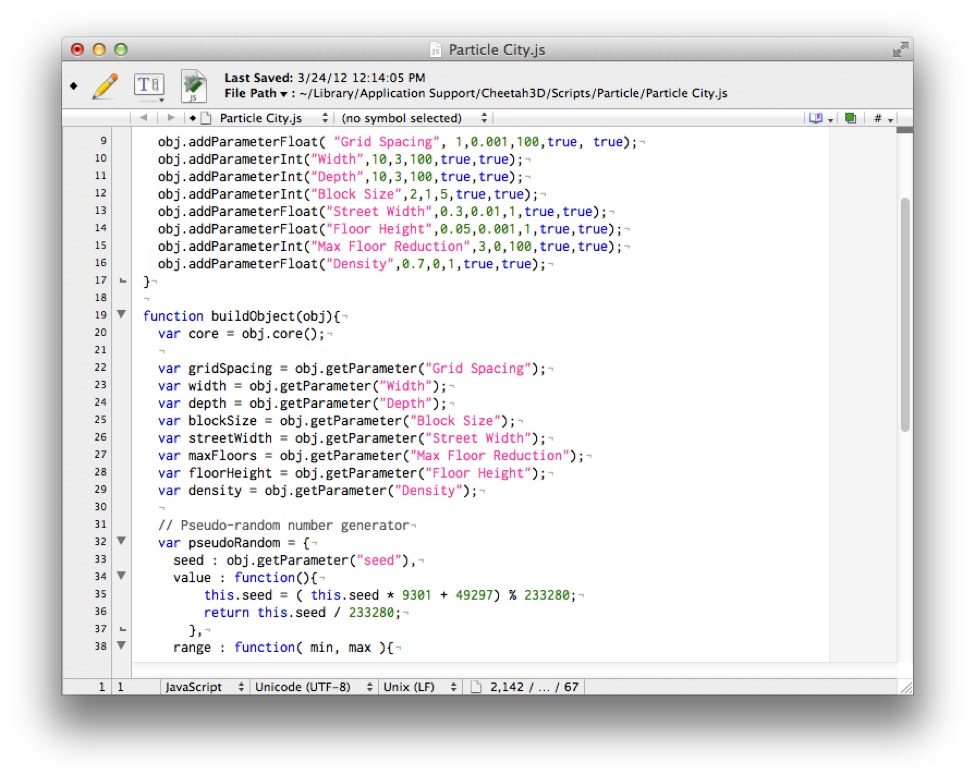
But what if you’re writing your own Particle System? Cheetah 3D doesn’t provide access to the pseudo-random number generator it uses internally. Here’s the current version of my Particle City script, a Particle System specifically designed to lay out buildings on a street grid. Note the Pseudo-random number generator! Also note how I obtain the seed value that Cheetah 3D automatically provides as part of any Particle System interface (so I don’t even need to create my own).
If you want to create procedural meshes (e.g. like the Relief object) you can make sure they will produce deterministic results based on a seed value using this pseudo-random number generator, or another like it.
//
// Particle City
// ©2010-12 Tonio Loewald
//
function buildUI(obj){
obj.setParameter("name","Procedural City");
obj.addParameterFloat( "Grid Spacing", 1,0.001,100,true, true);
obj.addParameterInt("Width",10,3,100,true,true);
obj.addParameterInt("Depth",10,3,100,true,true);
obj.addParameterInt("Block Size",2,1,5,true,true);
obj.addParameterFloat("Street Width",0.3,0.01,1,true,true);
obj.addParameterFloat("Floor Height",0.05,0.001,1,true,true);
obj.addParameterInt("Max Floor Reduction",3,0,100,true,true);
obj.addParameterFloat("Density",0.7,0,1,true,true);
}
function buildObject(obj){
var core = obj.core();
var gridSpacing = obj.getParameter("Grid Spacing");
var width = obj.getParameter("Width");
var depth = obj.getParameter("Depth");
var blockSize = obj.getParameter("Block Size");
var streetWidth = obj.getParameter("Street Width");
var maxFloors = obj.getParameter("Max Floor Reduction");
var floorHeight = obj.getParameter("Floor Height");
var density = obj.getParameter("Density");
// Pseudo-random number generator
var pseudoRandom = {
seed : obj.getParameter("seed"),
value : function(){
this.seed = ( this.seed * 9301 + 49297) % 233280;
return this.seed / 233280;
},
range : function( min, max ){
return Math.floor( this.value() * (max - min + 1) + min );
}
}
var w = (width - 1) * gridSpacing + Math.floor( width / blockSize ) * streetWidth;
var d = (depth - 1) * gridSpacing + Math.floor( depth / blockSize ) * streetWidth;
for( var x = 0; x < width; x++ ){
for( var z = 0; z < depth; z++ ){
if( pseudoRandom.value() < density ){
var bx = x * gridSpacing - w * 0.5 + Math.floor( x / blockSize ) * streetWidth;
var bz = z * gridSpacing - d * 0.5 + Math.floor( z / blockSize ) * streetWidth;
var  p = core.addParticle();
// drop each building by a number of floors
var h = pseudoRandom.range( 0, maxFloors ) * floorHeight;
p.setPosition( new Vec3D(bx, -h, bz) );
// rotate each building by a multiple of 90°
var r = pseudoRandom.range( 0, 3 ) * 90;
p.setRotation( new Vec3D( 0, r, 0 ) );
}
}
}
}