Tutorial: Simple Character Rig
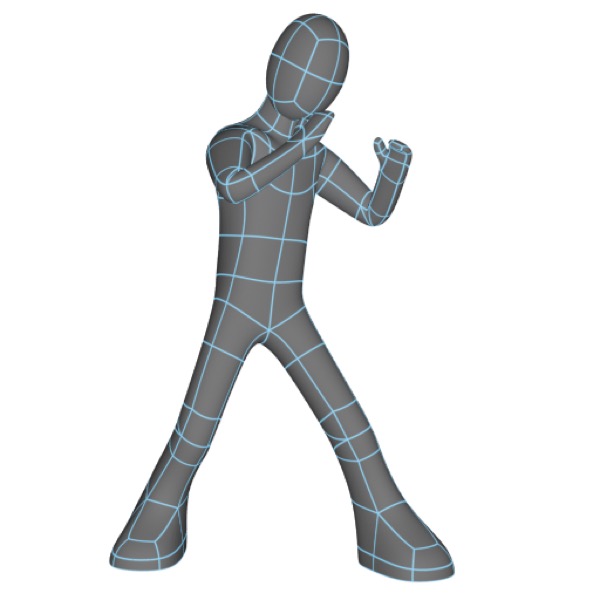
Rigging a humanoid figure involves the same techniques used to rig the tentacle. The major differences are that you’ll need a more complex hierarchy, and that symmetry is involved (you generally want the left leg rigged as a mirror image of the right leg, and so forth), which Cheetah 3D’s symmetry tools can’t do for bones.
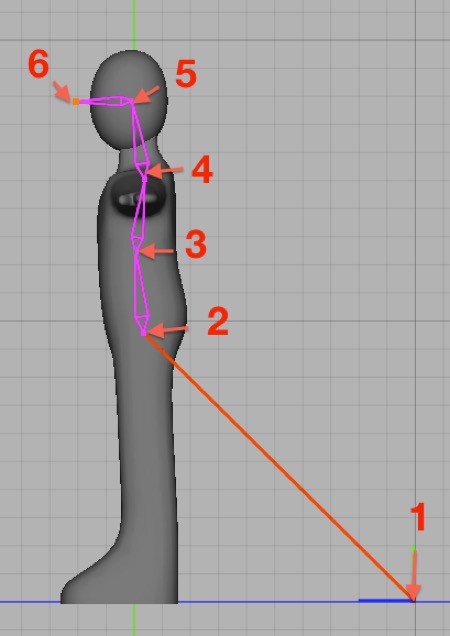
Start in the Left view. Use the Joint tool to click out the hierarchy per the above diagram. The first bone is our root (it’s on the ground and away from the mesh for convenience).
Rename the joints (from top to bottom) “root”, “back”, “chest”, “neck”, “head”, and “face”.
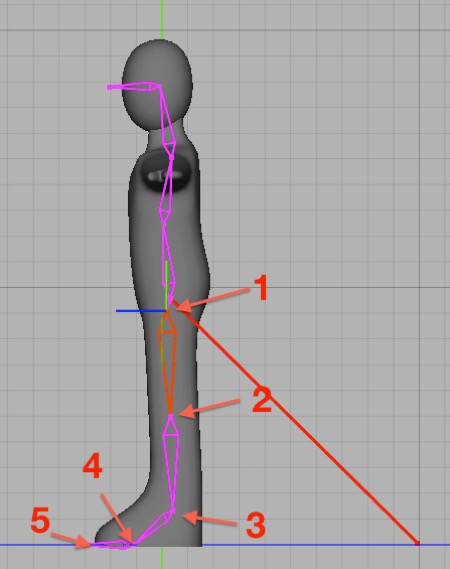
Click the “back” joint in the Object Browser, select the Joint tool, and click out the hierarchy above. Name these new joints “left-thigh”, “left-knee”, “left-ankle”, “left foot”, and “left toe”.
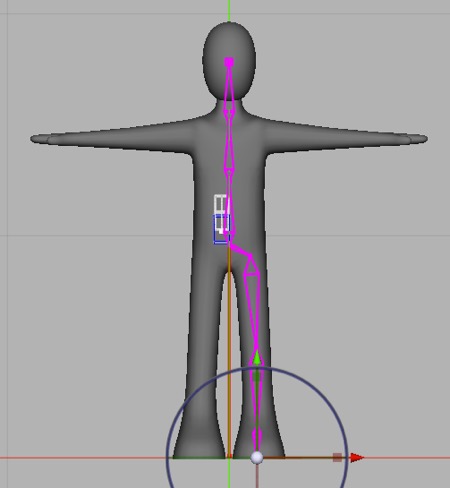
Switch to front view and move the new joints sideways so they are centered in the figure’s left leg.
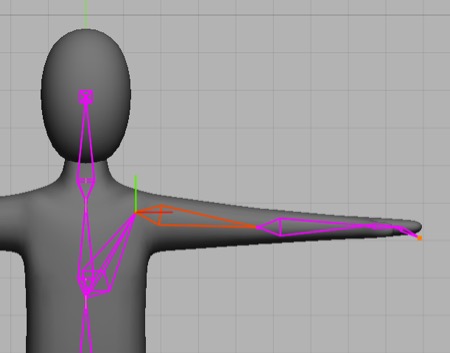
Now click on the chest bone in the Object Browser, select the Joint tool, and click out the left arm hierarchy (you can figure out the order).
Then go to the Top view and center the joints in the figure’s left arm. (You might want to somewhat reposition the joints too — e.g. the wrist is a bit out of position in my screenshot.)
Click on the left wrist in the Object Browser, select the Joint tool, and click out two bones for the thumb. Name them “left thumb” and “left thumb tip”, then switch to the Front view and fix the centering.
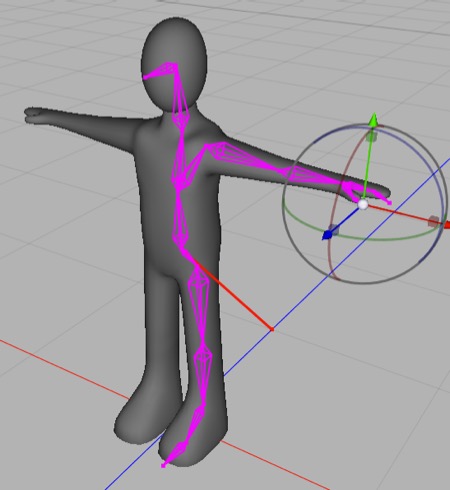
You might like to orbit your model in Camera or Perspective view and do a quick check on your skeleton’s positioning. It should be good.
AI draft: generated from the Cheetah 3D 8.1.1 manual; not yet reviewed by the author.
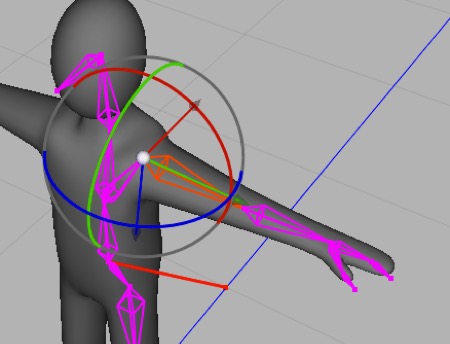
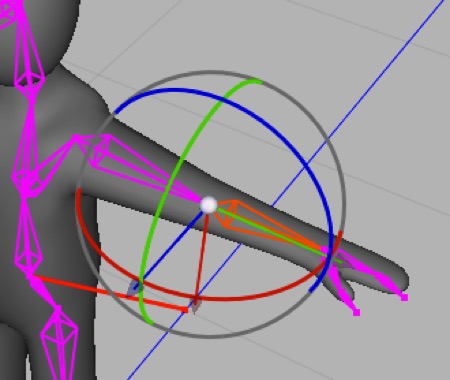
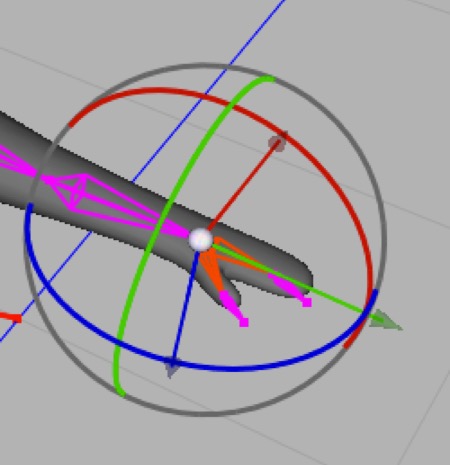
- Now go through your joint hierarchy looking at the axes of each bone in your hierarchy. What you’ll find is the leg is fine but the arm is a mess. You want the green (Y) axis of each joint pointing down the bone, and the red (X) axis should be the axis of rotation. Rather than fixing each joint by hand in pivot mode, select the left shoulder and choose Tools > Character > Orient Joint. The first axis in the Orientation setting points along the bone and the third points sideways to the bones, so choose YZX, leave Second axis at None, turn on Hierarchy, and click OK. Use pivot mode for any joints that still need tweaking.
End of AI draft.
Note: needs checking in Cheetah 3D 8.1.1: that the YZX orientation gives the axes described here for the arm (Tools/Character/JointOrientTool/JointOrientTool.txt).
You can test your skeleton now (even though half of the limbs are missing) by adding a skeleton tag to the mesh, binding it, and rotating some bones. When you’re finished testing, use the Skeleton tag’s “Show bind pose” function to reset the joint hierarchy, then delete the skeleton tag.
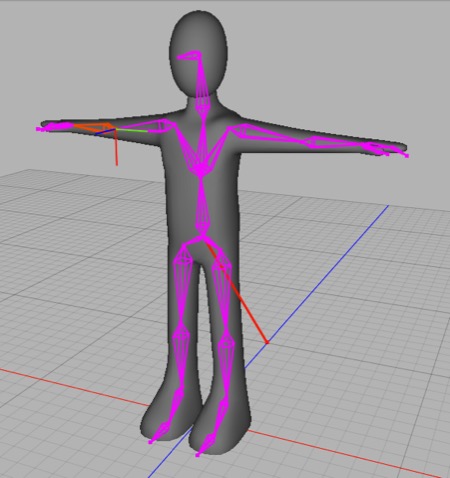
Now we need to mirror the left arm and leg hierarchies. We could just do everything over again (possibly typing in the positions of joints to make it exact). Or we can install tg_jp’s excellent Mirror Copy.js script, select the left shoulder, click Copy (under Object Copy), and then do the same for the left thigh. All that’s left is to fix the axes of the right arm (you don’t need to be exact).
Note: you can also do this quite efficiently using my Pose Utilities.js script, but tg_jp’s Mirror Copy is quicker and simpler. With Pose Utilities, you duplicate the two limbs, and flip and rename them.
Now we skin the mesh — add a [new] skeleton tag to the mesh and drag the root bone into its list box. Click Bind.
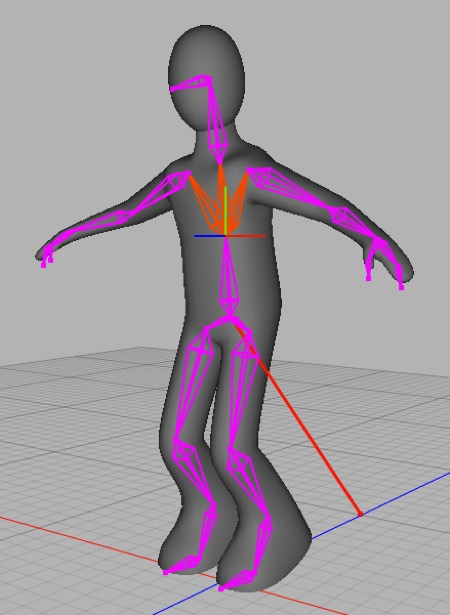
Before we add IK handles, we need to rotate the joints slightly to give it hints as to how you want the IK solver to work. Rotate each joint slightly in its usual direction — so the thigh rotates forward, the knee backwards. Each rotation should be around the joint’s x-axis thanks to the tweaking earlier. When you’re done, your mesh should look like the image above. You can save time here by just doing the left side then using my Pose Utilities.js, select the root bone, and then copy left-to-right. The figure should look something like the above image when you’re done.
- Now add an IK handle to each ankle and each wrist. Their default settings will be fine (even length!).
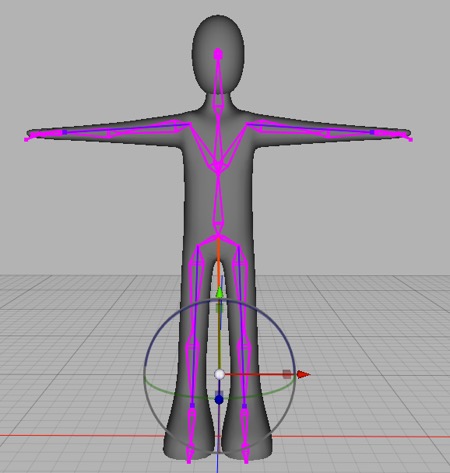
Play around by dragging the wrists and ankles around. By and large, the legs will work a bit better than the arms, but the arm IK is still quite useful. In general, you will pose figures using a combination of forward and inverse kinematics. You can always go back to the skeleton tag and reset to the bind pose.