Subdivision Surfaces
Subdivision surfaces are a powerful tool for creating smooth meshes. They are useful for both hard surface modeling (industrial design and similar kinds of modeling) and character modeling.
The base mesh to which subdivision is applied is often referred to as its “control cage” or “cage mesh”. The cage mesh affects the shape of the subdivision surface in much the same way as the control handles of a bezier control its curvature, and — as with bezier curves — the only way to get a good feel for how they work is to play with them.
Note: Cheetah 3D 8.1.1 also has a choice of subdivision schemes in the Subdivision modifier — Catmull-Clark, Stam-Loop (which avoids Catmull-Clark’s artifacts on meshes mixing triangles and quads) and Linear (Objects/ModifierObjects/SubDiv), not yet covered here.
Note: Cheetah 3D 8.1.1 also has the “Modifier On/Off” hotkey (or the Mode tag’s modifier checkbox) for reaching cage points hidden by the subdivided surface, and the Mode tag’s isoparameter editor shading for highlighting the cage edges (Objects/ModifierObjects/SubDiv), not yet covered here.
Controlling Curves
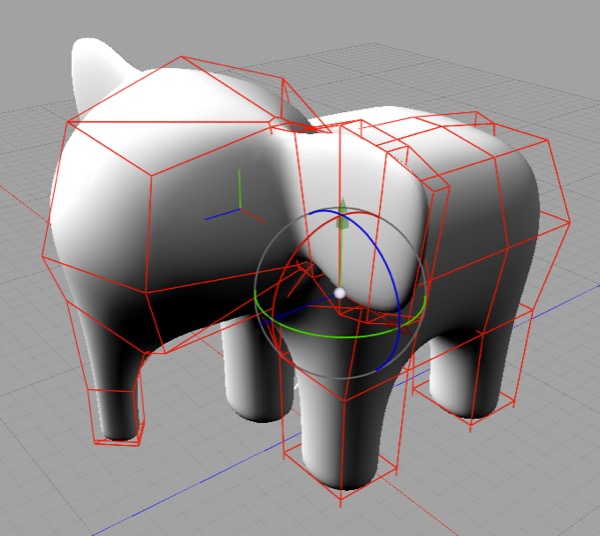
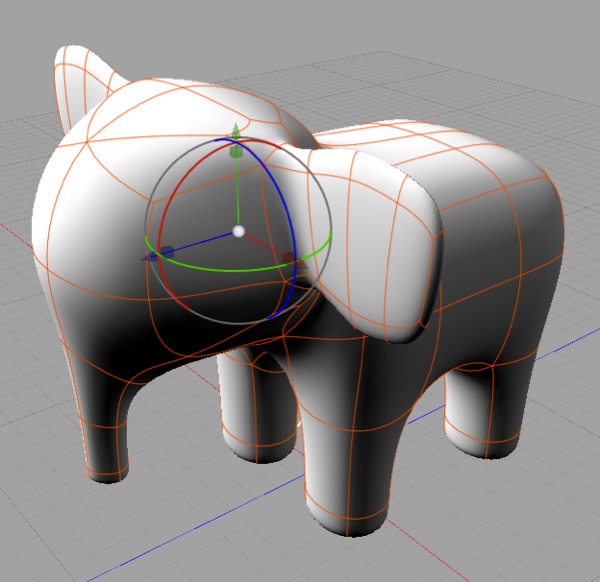
The general principle for controlling the curvature of a subdivision surface is that the more detail you need in the curve, the more detail you need in the cage mesh.
Creasing Edges
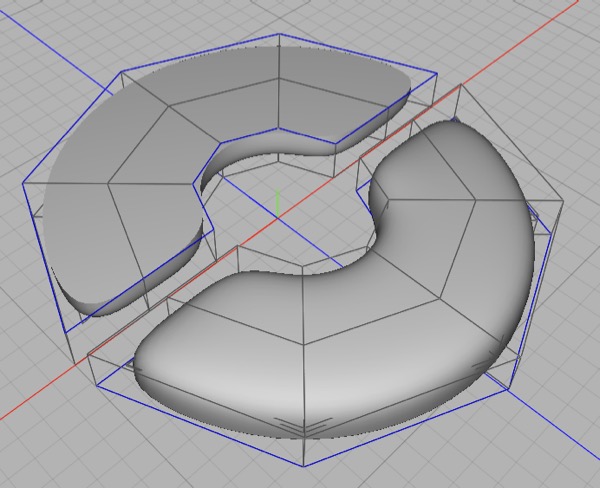
In this mesh you can see the effect of marking edges as creased (the blue edges are creased).
You can crease/uncrease edges using Selection > Toggle Crease. Creased edges will be sharply defined, but it’s a bit all-or-nothing. For finer control, adding extra detail to the cage mesh allows subtler definition.
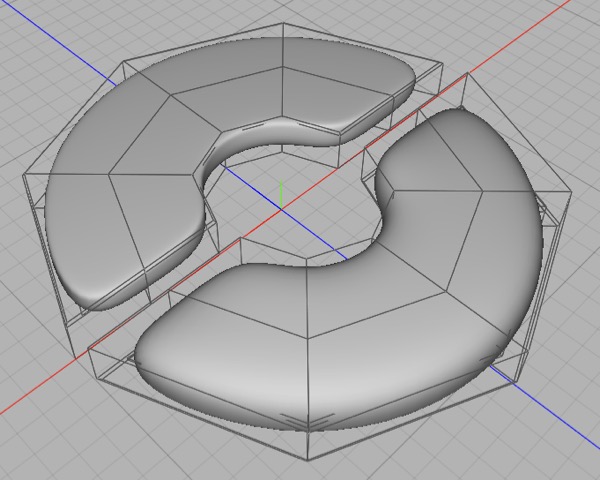
Here, I took the same mesh as before, used Selection > Select All Creases and toggled the creases off, then beveled the previously creased edges.
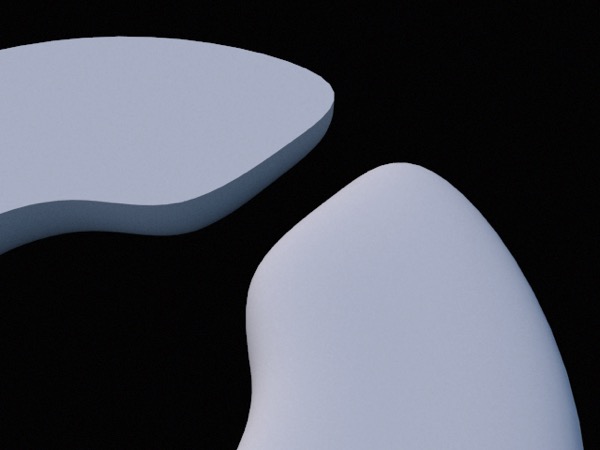
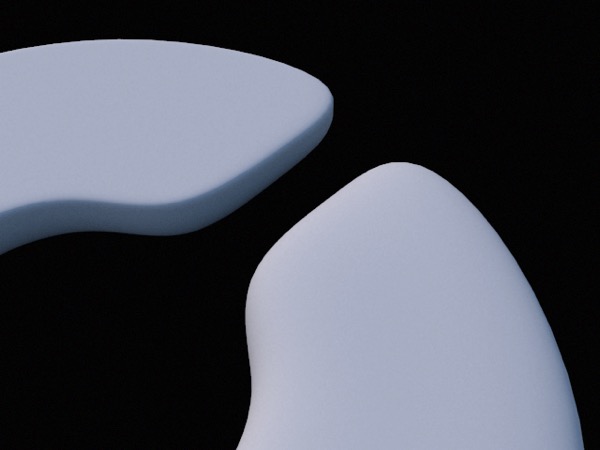
Here are the two meshes rendered. As you can see, creasing (top) produces a sharp corner while beveling (bottom) allows a defined but still rounded corner. Each option has its uses.