The Render Tag
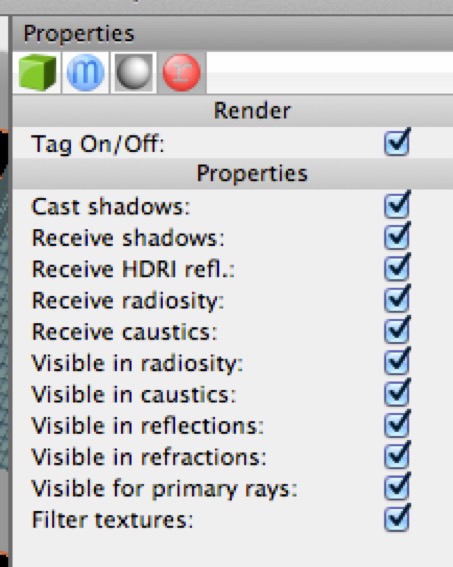
By default, an object will cast shadows, receive shadows, and so on. The render tag allows you to remove an object from certain aspects of Cheetah 3D’s rendering pipeline.
The render tag gives you fine control over how Cheetah 3D’s renderer will handle specific objects. Just as you can turn off all shadows using a camera’s settings, or all shadows cast by a light using a light’s settings, you can stop a specific object from casting shadows via a render tag.
Want to render a vampire looking in a mirror? You can prevent an object from appearing in reflections using a render tag.
Probably the most important settings are Cast shadows (e.g. if you want an object to not cast any shadows at all, this is the property to uncheck), Receive shadows, Receive radiosity (glass often causes problems in radiosity renderings of interiors, adding a render tag to glass panes and setting them to not receive or be Visible in radiosity often helps remove artifacts) and Visible for primary rays (if unchecked the object still casts shadows and appears in reflections and refractions, but otherwise it disappears — great for building environments around objects being rendered as icons, for example).
Note: needs checking in Cheetah 3D 8.1.1: the render tag’s property names. The manual still lists Cast shadows / Visible in Radiosity / Visible for primary rays, but the app’s strings label them Visible in shadows, Visible in diffuse, Visible in reflections, Visible in refractions, and Visible in camera, plus Receive HDRI refl., Receive caustics and Filter textures (manual: Tags › Render Tag; en.lproj/Localizable.strings).
The HDRI Light
AI draft: generated from the Cheetah 3D 8.1.1 manual; not yet reviewed by the author.
In Cheetah 3D 8, image-based lighting comes from an HDRI Light object (Objects > Scene > HDRI light, or the toolbar) rather than a tag on the camera. It loads an .hdr or .exr image (Oldtown.hdr by default), and its Type must match the image’s mapping (Probe, Cross, or Panorama).
An HDRI Light lights the scene by itself, shows up in reflections and refractions, and by default draws the Background (unless you have a very high resolution image, the background will usually look ugly, so you might want to uncheck Background). Intensity scales the image’s brightness, Clamp tames very bright pixels (like the sun) that cause noise with ambient occlusion or radiosity, and Samples trades render time for smoother shadows. MIS speeds up convergence, but only in Falcon.
You can have several HDRI and Sky Lights in a scene, but only the first one is used for rendering.
End of AI draft.
Radiosity Settings
AI draft: generated from the Cheetah 3D 8.1.1 manual; not yet reviewed by the author.
Radiosity is no longer a tag. In the Cheetah renderer’s settings (Render > Renderer), turn on Radiosity and pick its Type: Ambient occlusion or Radiosity. These two modes do very different things. Of the two, ambient occlusion is by far the quicker and radiosity tends to produce better results. Intensity, Samples, Diffuse bounces, Specular bounces, Error, Rmin, Rmax, and Detail detection fine-tune the result.
Since Type is a single setting, you cannot use both ambient occlusion and radiosity in a single render.
Falcon doesn’t have these settings: as a path tracer it includes bounced light in every render, and its Ray depth settings control how many bounces it follows.
End of AI draft.
Ambient Occlusion
Ambient Occlusion applies a simple idea to a scene’s lighting — assume that light is coming from “all around” it follows that parts of a scene that are in corners or nooks and crannies will receive less of this light. The way Cheetah 3D does ambient occlusion, with default settings a scene will become brighter overall when you add ambient occlusion, but “nooks and crannies” will not be brightened as much as other areas.
It’s worth noting that ambient occlusion is a monochromatic phenomenon. It affects the brightness of the scene, but not the color.
Radiosity
Radiosity tries to simulate the effect of diffusely reflected light. Adding radiosity to a scene will cause surfaces to receive light reflected from other nearby surfaces. In particular this tends to cause colors from one surface to “bleed” onto adjacent surfaces (this is quite realistic).
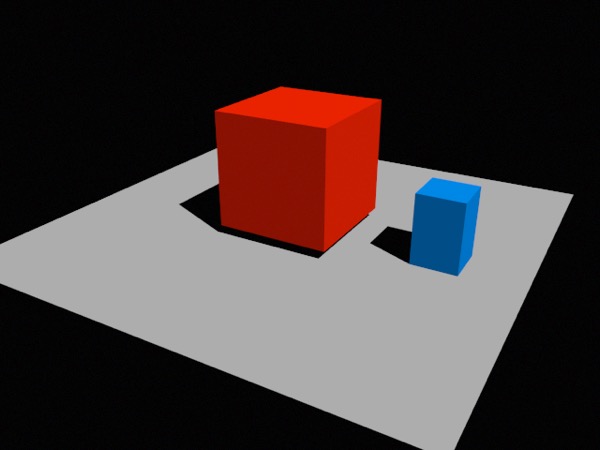
Simple scene rendered with a single distant light. Note how the brightness of the faces of the two boxes are uniform.
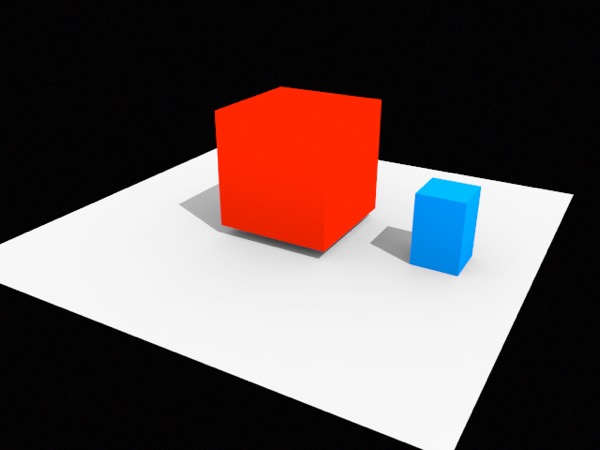
This shows the affect of adding Ambient Occlusion. Note in particular that the nearest faces of each box get slightly darker towards the bottom.
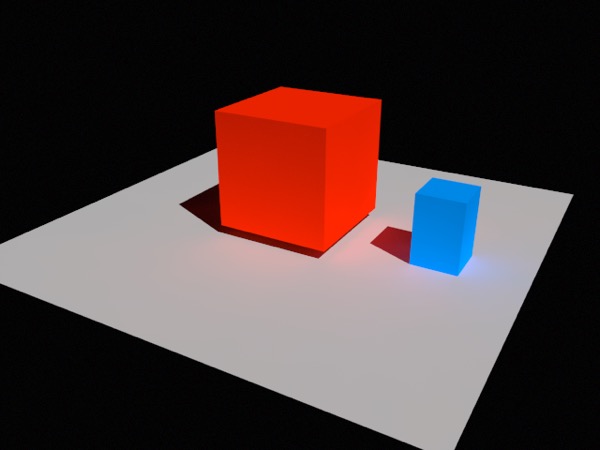
Finally, here’s radiosity in action (I’ve dialed the intensity up to 3.0 to exaggerate the effect). See how the box’s colors bleed into the neutral plane below them. Here the bottoms of the faces are brighter because they’re receiving diffuse reflected light from the plane.