Tags
Tags don’t do anything by themselves, instead they attach extra information to an object that can be used by Cheetah 3D’s internal functions (or scripts). Most tags are only meaningful in specific contexts and can only be attached to certain objects.
Note: requires updating for Cheetah 3D 8.1.1: the tag categories and lists below are stale. The manual's Tags section lists Anchor, Bake Texture, IK Constraints, IK Handle, Material, Metaball, Mode, Morph, Orient Constraint, Parent Constraint, Particle, Point Constraint, Pose, Render, Rigid Body, Rope, Skeleton, Soft Body, Spline IK, Spline Tracking, Target, and Vertex Color, and no camera render tags.
Cheetah 3D groups tags into five categories (six if you include scripted tags). These categories can be thought of as:
Rendering
Inverse Kinematics
Animation
System Properties (i.e. extra information for particle and metaball systems)
Dynamics
Rendering Tags
Note: this screenshot shows an older version of Cheetah 3D.
Most of these tags are further discussed in more detail elsewhere.
AI draft: generated from the Cheetah 3D 8.1.1 manual; not yet reviewed by the author.
In Cheetah 3D 8.1.1 only two rendering tags are left, Bake Texture and Render, and both go on polygon objects. The effects that used to be camera tags have moved:
- Caustics, Radiosity, and Depth of field are sections of the Cheetah renderer's settings (Render > Renderer, or the render settings icon in the toolbar).
- The depth of field parameters themselves (aperture, focal distance) are now properties of the Camera.
- HDRI and Fog are now scene objects: the HDRI Light and the Fog object (Objects > Scene).
I've kept them all here because this is where you'd look for them.
End of AI draft.
Bake Texture
You assign this tag to a mesh you’re planning to bake, and it controls and facilitates the baking process. (Oddly enough, the Bake toolbar button has two different effects. If your current selection is a mesh and has a Bake Texture tag assigned to it, it bakes the mesh. If your current selection is a mesh without a Bake Texture tag, it adds a Bake Texture tag to it.)
Note: needs checking in Cheetah 3D 8.1.1: does the bake toolbar button still add a Bake Texture tag when the selected mesh has none? The manual only says it "starts a baking rendering job" (also Render > Bake Texture).
Caustics

A glass cube with a spotlight (set to ray-traced shadows).
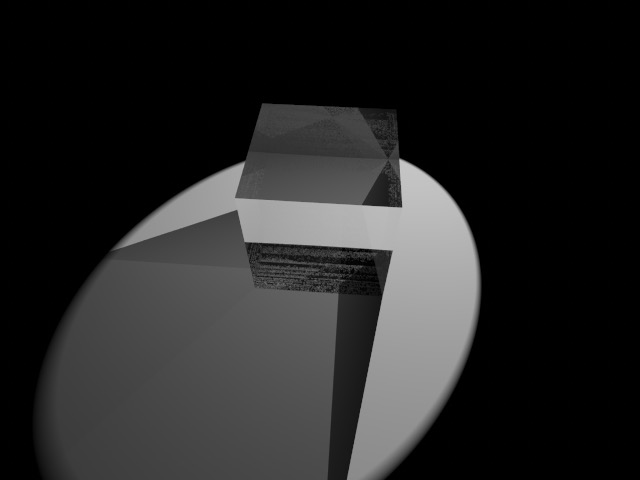
Ray-tracing with transparency creates very implausible results.
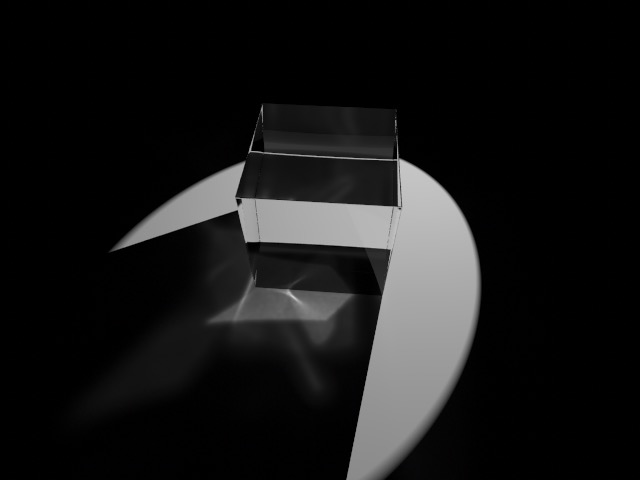
Adding caustics results in more realistic scattered light appearing in shadows, although tweaking the settings to get good results requires both judgment and effort. (1,000,000 photons, 0.1 strength, 1000 samples.)
Caustics are visual effects caused by light being refracted or reflected, especially into the shadows of objects (where they are most noticeable). Objects tend to cast shadows, but if they're transparent the light goes somewhere, and that's what caustics simulate.
AI draft: generated from the Cheetah 3D 8.1.1 manual; not yet reviewed by the author.
In Cheetah 3D 8.1.1 caustics are a section of the Cheetah renderer's settings (Render > Renderer) rather than a tag. They work together with each light's Caustic photons property: the light shoots that many photons into the scene, they're stored where they hit (the "photon map"), and the renderer then gathers nearby photons to work out how bright each caustic is. The renderer's Strength sets the intensity of the caustics, Samples sets how many photons are used for each estimate (too few gives blotchy caustics), and Blur sets the radius they're gathered from (higher is smoother).
Caustics are implemented using a good deal of fakery behind the scenes, and in particular spotlights are the best source of caustic "photons" because you can concentrate them on the specific part of the scene you want the caustic to show up in (a point light sprays its photons in every direction). A light's Pure photon light option turns it into a fake light that only shoots photons and doesn't light the scene directly. If you just want caustics to appear correctly and organically everywhere (e.g. in giant architecture renderings) you should probably use an unbiased (or physically-based) renderer.
End of AI draft.
Note: needs checking in Cheetah 3D 8.1.1: what caustics can Falcon (Cheetah 3D's unbiased renderer) render now? The book said it couldn't; the app's Falcon settings include a "Disable caustics" option, but the manual's Falcon page doesn't mention caustics.
Depth of Field
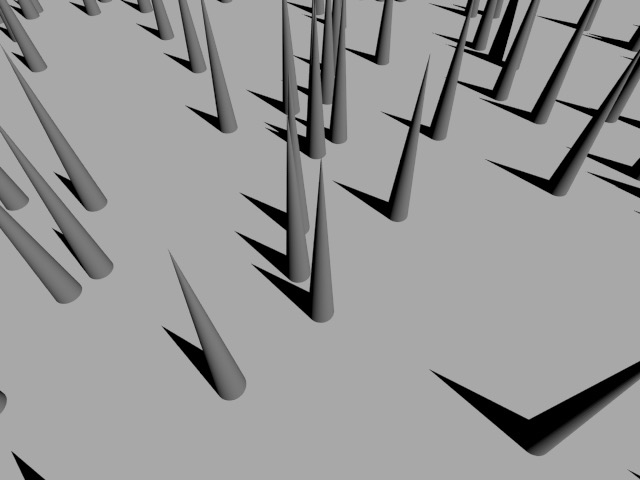
No depth of field.
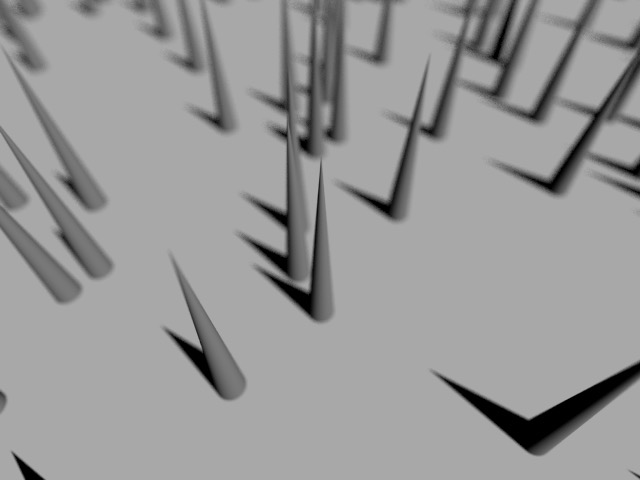
Depth of field (the point of the central cone is in near-perfect focus).
AI draft: generated from the Cheetah 3D 8.1.1 manual; not yet reviewed by the author.
Depth of field will cause Cheetah 3D's usual "perfect" camera to suffer from depth of field effects somewhat like a real camera. In Cheetah 3D 8.1.1 it's set up on the Camera rather than with a tag:
- Aperture size: the bigger the aperture, the stronger the effect.
- Focal distance: objects near this distance stay sharp. Alternatively, pick a Focus object and the camera will keep that object in focus automatically, which is especially handy in animations.
- Aperture blades and Aperture rotation: these shape the bokeh (0 blades gives a circular aperture).
With the Cheetah renderer you also need to turn on Depth of field in the renderer settings. Its Camera samples property sets the quality: more samples, less noise.
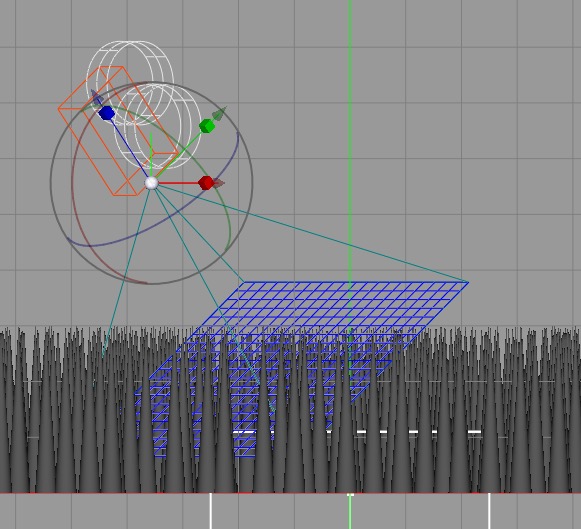
Note: this screenshot shows an older version of Cheetah 3D.
Turn on the camera's Display DOF-Grid to see the plane of focus in the viewport (an awesome feature).
Hint: you can use the DOF grid to judge the distance from the camera to objects in the scene, for setting similar properties such as the Fog object's Start distance.
End of AI draft.
Note: needs checking in Cheetah 3D 8.1.1: does Falcon render depth of field from the camera settings alone, or does it also need a checkbox? The manual documents the Depth of field checkbox only for the Cheetah renderer.
A real camera will only be perfectly focused on a plane (or sometimes a curved surface) in space. Everything that is closer to, or further from the camera than that surface will be out of focus to some extent. The distance away from the surface within which a subject remains acceptably sharp is referred to as the depth of field. The "longer" the camera's lens (i.e. the narrower its angle of view) and the "wider" its aperture (i.e. the larger the hole light passes through) the smaller the depth of field will be, and the blurrier objects outside the depth of field will become.
The depth of field effect is achieved stochastically (i.e. by randomly sampling multiple rays) so it's computationally expensive and will tend to increase render times by a factor proportional to the number of samples.
Fog
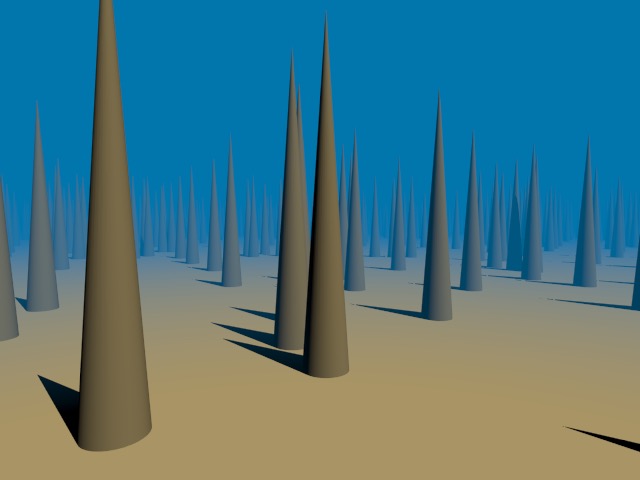
Cones in the fog
AI draft: generated from the Cheetah 3D 8.1.1 manual; not yet reviewed by the author.
Fog is now a Fog object (Objects > Scene > Fog) rather than a camera tag, and it works only with the Cheetah renderer. Adding fog to a scene will cause the scene to "disappear into fog" of a chosen Color. Type (Linear, Exp, or Exp^2) sets how quickly the fog thickens, Density sets how foggy it gets, and Start sets the distance from the camera where the fog begins. It's a very simple effect. In particular, fog doesn't cause any blurring, so it may be helpful to use a subtle depth of field in concert with fog if you want mist effects. Black fog is handy for darkening the back of a night scene, and blue fog for underwater scenes.
End of AI draft.
One important side-effect of fog is that it effectively becomes the background color, including in reflections. This makes subtle use of fog very helpful for quickly putting together simple, good-looking renders (such as product shots). It also prevents you from using fog if you want a transparent background.
HDRI
AI draft: generated from the Cheetah 3D 8.1.1 manual; not yet reviewed by the author.
HDRI is now a scene object, the HDRI Light (Objects > Scene > HDRI Light), rather than a camera tag. It assigns an HDR image (.hdr or .exr) to the whole scene, and that image is then used for image-based lighting, reflections, and (if Background is on) the background. Type sets the image's mapping (Probe, Cross, or Panorama), Intensity scales its brightness, and Clamp tames very bright pixels (like the sun) that would otherwise cause noise in radiosity or ambient occlusion renders. With the Cheetah renderer you should also turn on Radiosity in the renderer settings if you want image-based lighting. You can have several HDRI and Sky Lights in a scene, but only the first one is used for rendering.
End of AI draft.
Radiosity
AI draft: generated from the Cheetah 3D 8.1.1 manual; not yet reviewed by the author.
Turning on Radiosity in the Cheetah renderer's settings (Render > Renderer) means that it will render using either the ambient occlusion or radiosity algorithms rather than simple ray-tracing.
End of AI draft.
Both ambient occlusion and radiosity are techniques designed to account for the shortcomings of simple rendering models which don't account for scattered light.
Ambient occlusion applies a simple heuristic to scenes where surfaces receive more light if they are far from a sharp corner and receive less light if they are close to a sharp corner.
In practice, ambient occlusion produces very bright renders, but darkens nooks and crannies.
Radiosity applies a more computationally expensive approach and assumes surfaces will be lit (in part) by light scattered from other surfaces. (If you're into theory — it's the ray-tracing approach to the problem that unbiased rendering solves in a more realistic way.)
In practice, radiosity adds a good deal of realism to renders. It causes bright surfaces to diffusely illuminate nearby surfaces, and — similarly — colored surfaces to bleed into nearby objects.
AI draft: generated from the Cheetah 3D 8.1.1 manual; not yet reviewed by the author.
Radiosity also treats an image-based lighting source (the HDRI Light) as input data for its algorithm.
Important Note: radiosity is off until you tick the Radiosity checkbox, and its Type can be either Ambient occlusion or Radiosity. In most cases you probably want to choose Radiosity and turn on Detail detection. Falcon, Cheetah 3D's unbiased path tracer, doesn't use these settings.
End of AI draft.
Render
The Render tag is assigned to mesh objects and controls how they are rendered. E.g. if a particular object is creating a problematic shadow, you can make its shadow disappear.
Inverse Kinematics Tags
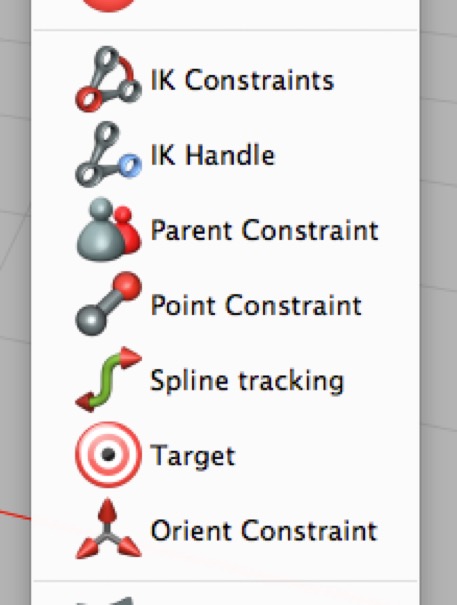
The Inverse Kinematics tags control the behavior of objects in the IK system.
Animation Tags
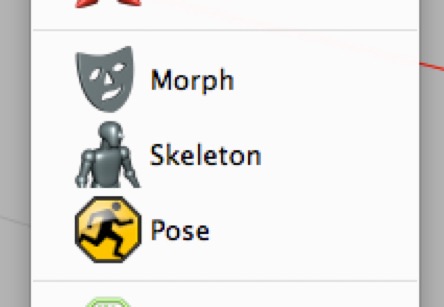
Morph
The Morph tag allows you to store and interpolate between morph states of a mesh. The usual application for this is animating facial expressions and mouth shapes for a character.
Skeleton
The Skeleton tag allows you to store and edit an animation “rig”. In terms of other 3D packages, it is used to “skin” meshes.
Pose
The Pose tag allows you to store and re-apply the keyed settings of the object to which it is attached and that object’s descendants.
System Properties Tags
The Particle and Metaball tags affect the behavior of individual meshes within a Particle System or Isosurface Creator.
Note: "Dynamics Tags" and "Material Tags" are
####headings filed under System Properties Tags; they should probably be###.
Dynamics Tags
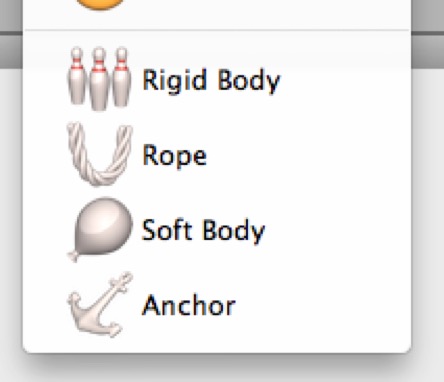
The Dynamics tags assign dynamic behavior to meshes. They are described in greater detail in the chapter on Dynamics.
Material Tags
In addition to the Mode tag every object (except a camera) automatically receives, when a material is assigned to an object it is represented by a Material tag, which is covered in more detail in the section on Materials.